Developing a New Model Context Protocol (MCP) Server for the Humanitarian Data Exchange (HDX)

TL;DR
Using AI, we develop a new Model Context Protocol (MCP) server for the Humanitarian Data Exchange (HDX) API. We’ll demonstrate how it can be used in AI clients like Claude desktop to answer basic analytical questions related to humanitarian data, as well as a tool for finding datasets on HDX. Caveats related to MCP servers presenting disaggregated data will be discussed, as well as the process for submitting an MCP server to the new Docker MCP Hub and how to install it locally using this channel.
For those who want to skip to using the new server, you can find the mcp-hdx repo here. See also the section ‘Installing the HDX MCP Server from Docker MCP Hub’ below for the fastest way to get up and running.
What is this Model Context Protocol Anyway?
Model Context Protocol (MCP) is a way for LLMs to access data and tools in a consistent way, irrespective of data source. The common analogy is that it’s like a USB port for LLMs to access plug-ins, which provide resources.
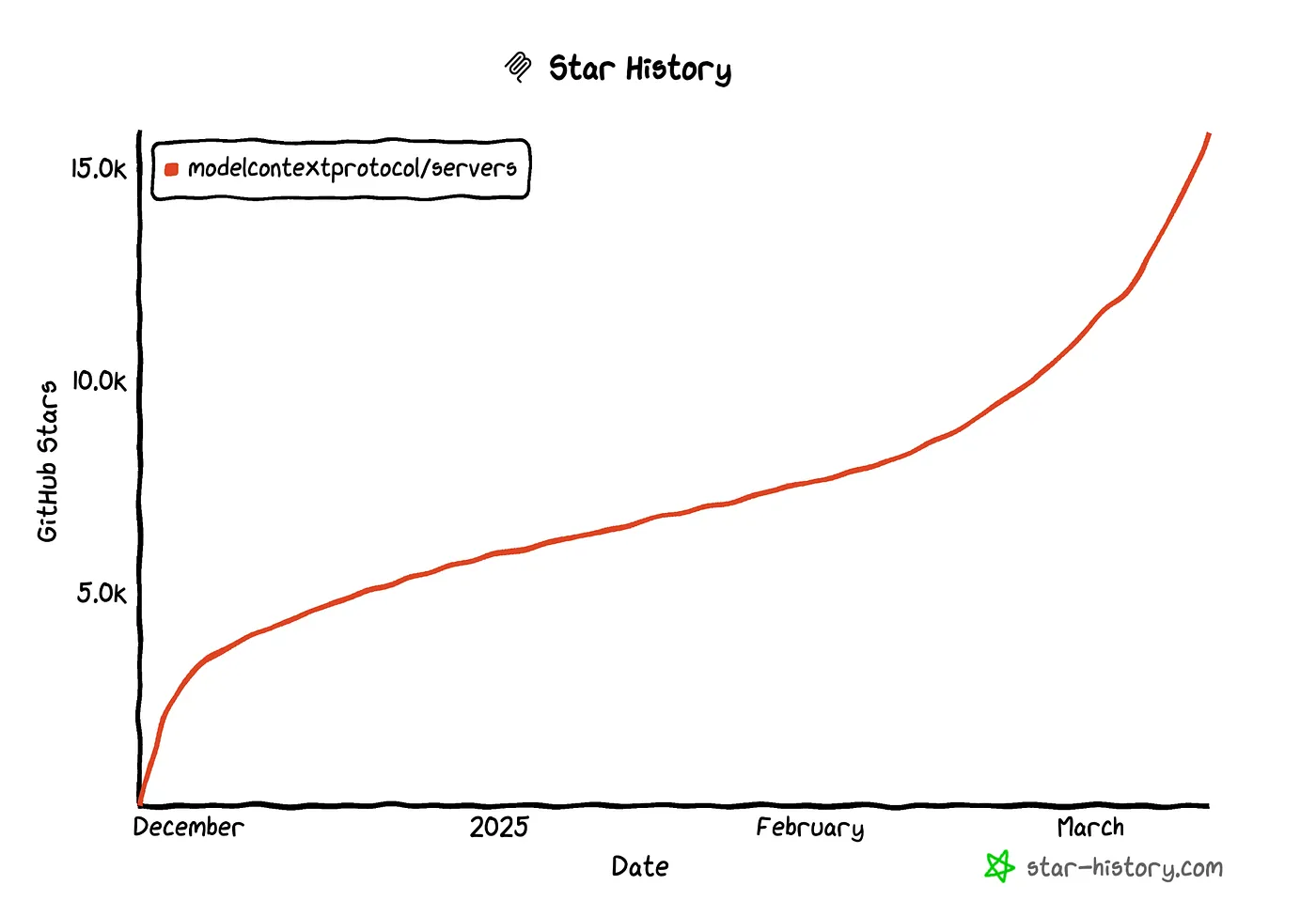
Things have taken off for MCP this year. Most major AI platforms, such as ChatGPT, Claude, and Perplexity are in the process of adding MCP support, and resources like Docker MCP Catalog are moving us towards a hub of MCP servers people can connect to for their work.
It’s looking like MCP is here to stay.
Having a standard protocol makes integration easier, providing off-the-shelf ways to connect AI platforms to tools and data, and to each other. Interoperability is key; rather than write one custom piece of AI software, put its data, tools, and AI capabilities into an MCP server so it can be used with any AI platform that supports MCP integration. This increases the number of delivery channels, as well as investing in a resource that can be reused as AI advances beyond what is available today.
The Humanitarian Data Exchange API
If you have read any of my previous blog posts, I am a huge fan of the amazing work done by the Humanitarian Data Exchange (HDX) team. The platform provides a way to find, share, and use humanitarian data all in one place. It has a great API and is a strong candidate for an MCP server, which could allow people to interact with humanitarian datasets using AI.
Getting Started
First, we need to generate a free HDX API ‘App identifier’ key by going to the API documentation page and clicking ‘Try it out’ and entering an application name and email in the ‘encode_app_identifier’ endpoint…
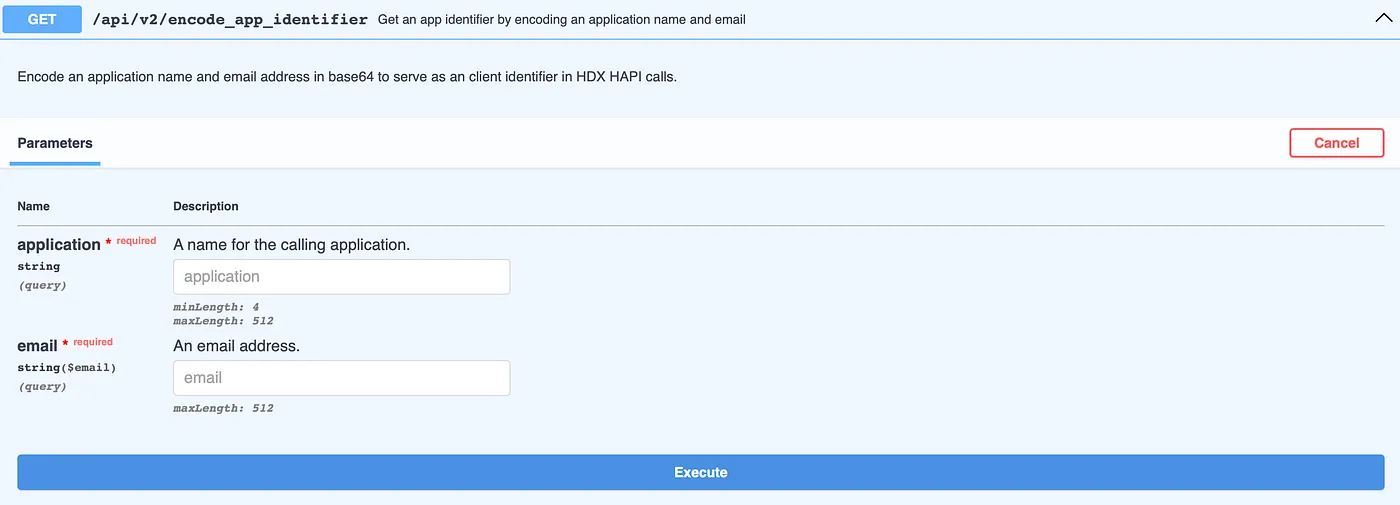
After filling out the required fields and clicking ‘Execute’, you should get an identifier to use with the API.
Using AI to Write Our New Server … for AI to use
As mentioned in a previous blog post, this year has seen a dramatic increase in the ability to create new software using AI and tools such as Cursor. There are caveats, but with good tests and some experience, many issues can be addressed. We will use Cursor for this blog post to illustrate some of these.
After creating a new GitHub repo and cloning the code, we start Cursor and load the empty repo.
Starting from nothing, let’s instruct the AI to generate an MCP server using the API definition and a few other references. Here is the prompt …
I would like to write an MCP server which enables an AI to interact with the API on the Humanitarian Data Exchange. The API is documented fully on this page:

The openapi.json file is here:

https://hapi.humdata.org/openapi.json

Excluding the endpoint to generate an app identifier, I want tools for every API endpoint.

Where tool parameters mention another endpoint to get values, in the tool schema note there is another tool to get those values.

To create the Python server, I want you to use FastMCP ...

@https://gofastmcp.com/integrations/openapi

Read the docs and use the above approach.

I want you to generate an MCP server that:

Implements http and stdio, NO sse.

Loads the OpenAPI spec and automatically exposes one MCP tool per operation (using the operationId or a sanitized name).

Builds each tool’s inputSchema from the OpenAPI parameters and requestBody, so clients get proper validation and nice UIs.

Forwards the tool calls to the API endpoint described in the OpenAPI spec, handles query/path/body parameters, and returns the JSON/text responses.

Handles authentication (Bearer token, API key header, or API key query parameter) via environment variables.

Uses stdio transport for local use, but please also include an HTTP transport option (/mcp endpoint) for remote use.

 Important warning: I will also be adding custom non-OpenAPI tools later. Please design the server so I can register extra tools alongside the OpenAPI-derived ones. That means:

Ensure that the server merges both the generated OpenAPI tools and my extra tools into one tools/list response.

Keep the code clean and modular so it’s easy to drop in new tool definitions.

Please include:

A working package.json (if Node/TypeScript) or go.mod (if Go) with all dependencies.

Example .env entries for API spec location and auth settings.

Comments showing where I would add my own tools later.

Generate self tests which test the actual code and document fully in the README.

Also ensure the server is secure, you can use this as a reference ...

@https://modelcontextprotocol.io/specification/draft/basic/security_best_practices

Note, the API Key for HDX should be stored in a .env file, and there should be an env.example for the user to review.

Finally, I have already put these variables in the .env file for you to test the server ...

HDX_API_KEY=<REMOVED HERE BUT IN THE .env file>
HDX_BASE_URL=https://hapi.humdata.org/api/v2

(NEVER print the API Key or .env, it is in the .env file, which you can only see with ls -la)

The code base must be python, using FastMCP. Again see docs here ...

@https://gofastmcp.com/integrations/openapi
… and then get a cup of tea. Cursor will merrily start the job and create a new MCP server from scratch.
Key things in the prompt:
- We’ve instructed the AI to use FastMCP and its support for openapi.json
- We’ve alerted it to the fact that we will have custom tools as well as tools for every endpoint in the API
- We’ve asked it to adhere to security best practices and provide reference documentation
- We’ve asked it to generate self-tests, an absolute must if using AI to code
This first iteration takes about 10 minutes, and actually creates a working MCP server …
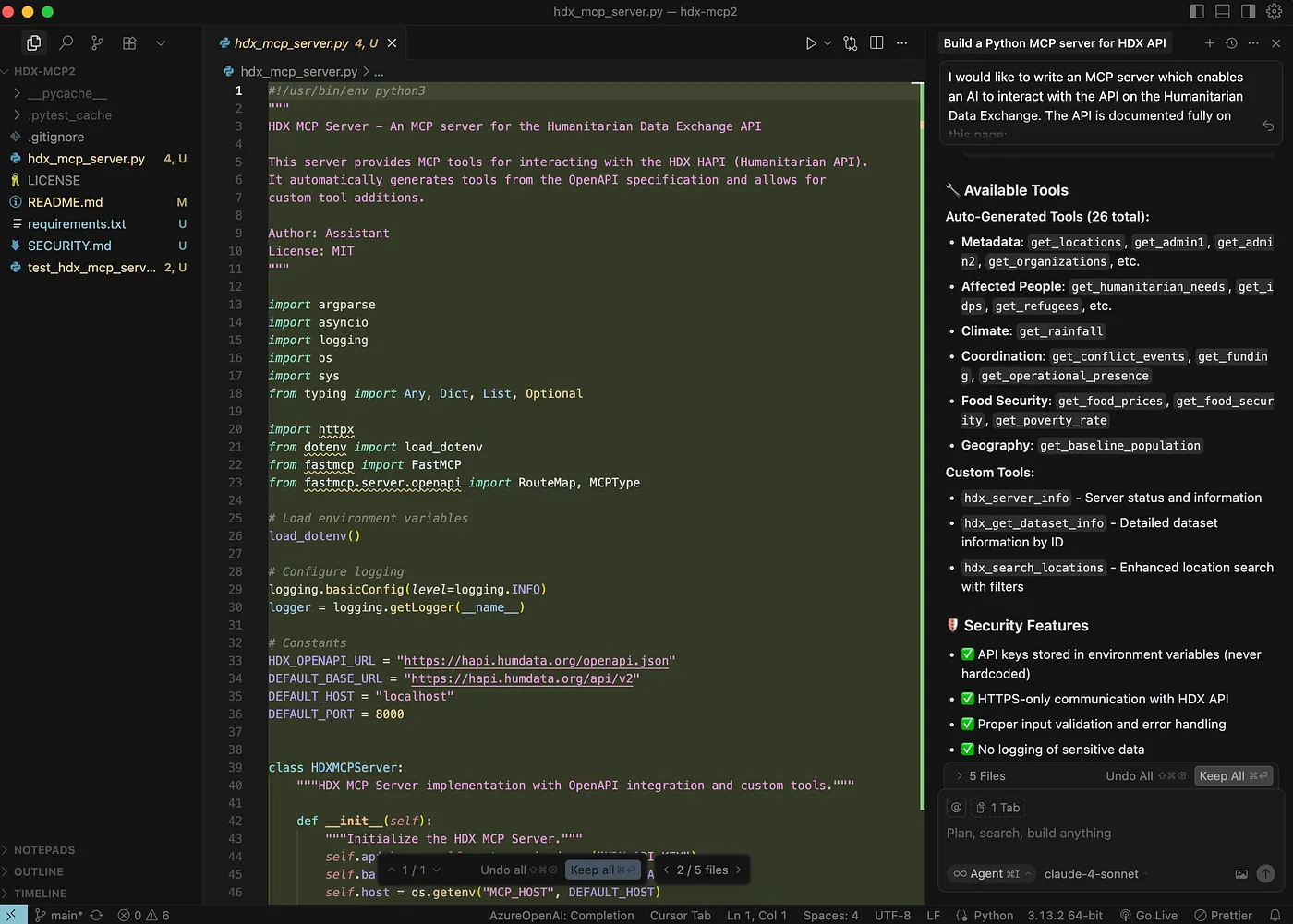
This is just the start; context engineering requires further crafting.
One area that was a bit challenging was the OpenAPI > FastMCP conversion using the ‘openapi.json’ file. There was an issue regarding incomplete $ref items in the API file, which FastMCP couldn’t quite handle. I stopped the AI attempting to monkey-patch FastMCP (yuk!) and instead instructed it to pre-process the API file to fix $refs while maintaining their important information in the tool schema. This is a good example of why having a good idea of the technical aspects of the task is still really important, even if AI programming seems magical.
We then further instructed the AI to cover …
**Environment & Configuration
**• Move hard-coded constants to ‘.env’ file for configuration
• Create env.example with placeholder values and comments
• Use the UV package manager for Python environment management
• Document environment setup and usage in README
**Core Functionality
**• Convert ‘$ref’ openapi definitions to prompts to use associated tools
• Update prompt and tool descriptions to note varying regional coverage
• Update prompts to indicate when data is too granular for certain requests
• Inject API ENUMS into tool parameters so LLM knows values to use
**Testing Requirements
**• No skipping tests
• Replace all fake/mock tests with REAL tests that test actual server code
• “ALWAYS test the real code” — verify actual MCP server functions
• Organize tests into three folders: unit, integration, security
• Test production functions with minimal mocking (only HTTP responses)
• Add live server rate limiting test to confirm protection works
**Security & Quality
**• Implement rate limiting to protect the HDX API from abuse
• Add security tests for input validation and malicious inputs
• Fix all code quality issues (black, isort, flake8, mypy)
• Pre-commit checks must pass before GitHub Actions
You can find the full MCP Code here.
After a few hours, we can now start our brand-new MDX server …
uv run python -m hdx_mcp_server --transport http --host 0.0.0.0 --port 8000 --verboseNote: The repo also includes a Docker build to start the server, which we’ll use later.
Testing with MCP Inspector
Now we have a new shiny MCP server running, let’s test it by starting the MCP inspector. This is a great tool to confirm it really is an MCP server.
After running it, we can enter our new MCP URL of ‘http://127.0.0.1:8000/mcp’ and click ‘Connect’ …
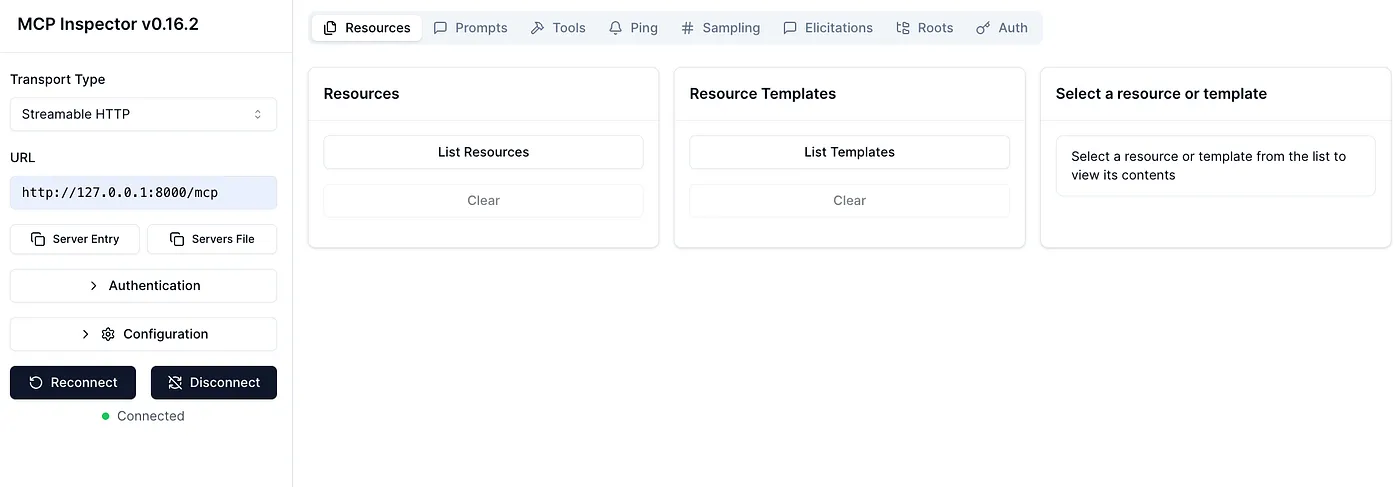
Yay! Something is running on port 8000!
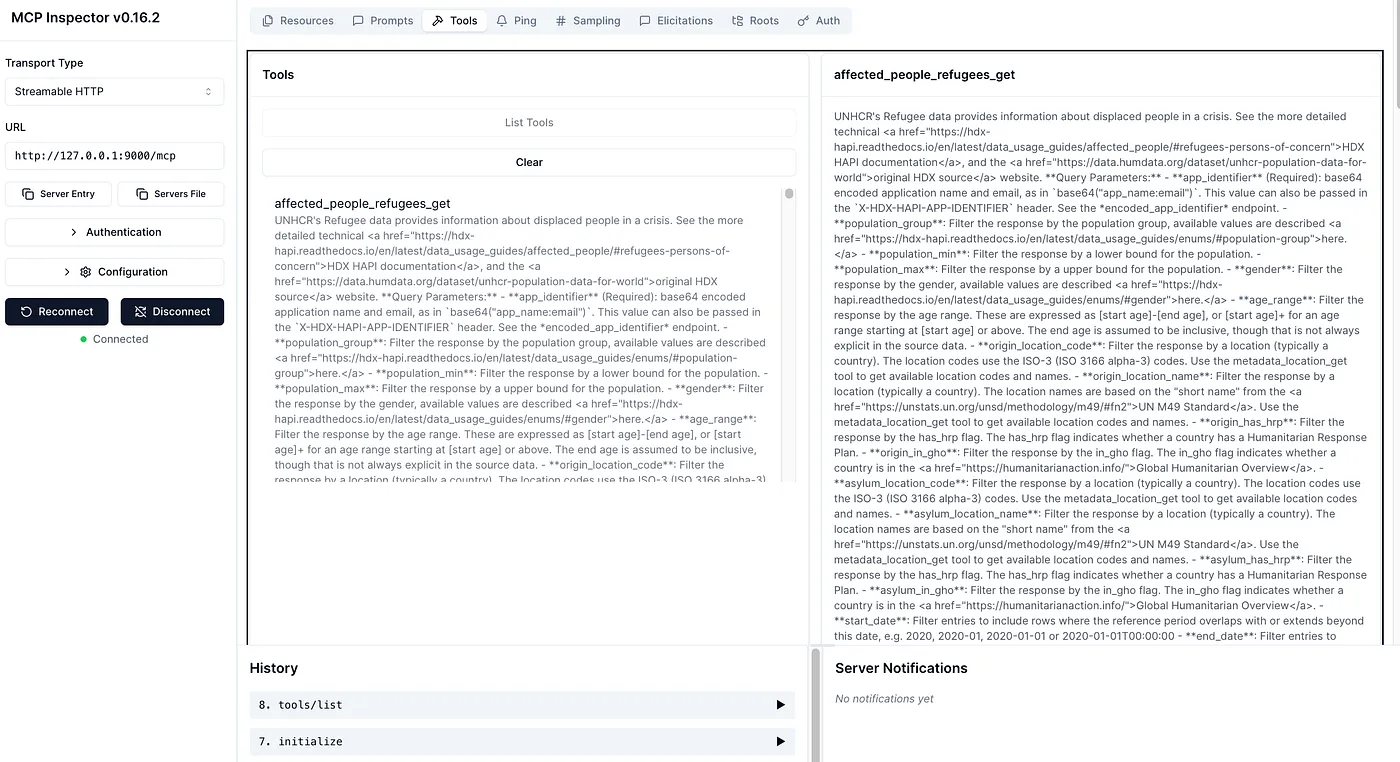
We have tools! In fact, due to the large number of API endpoints in the HDX API, plus a few utility skills, we actually have 29 tools.
Let’s see if they actually return anything by selecting ‘affected_people_refugees_get’’ and clicking ‘Run Tool’ …
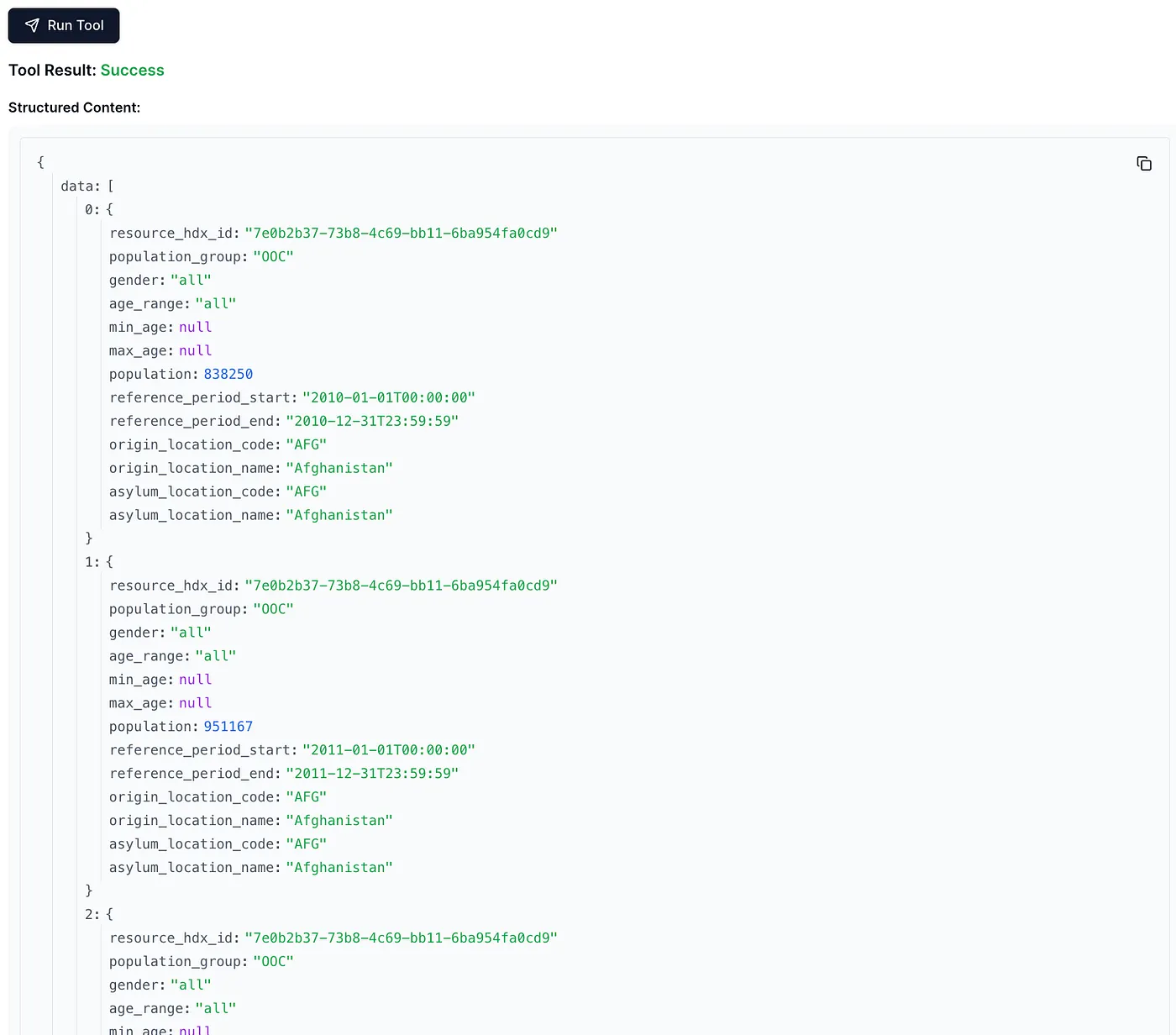
So the MCP server is serving data from the HDX API.
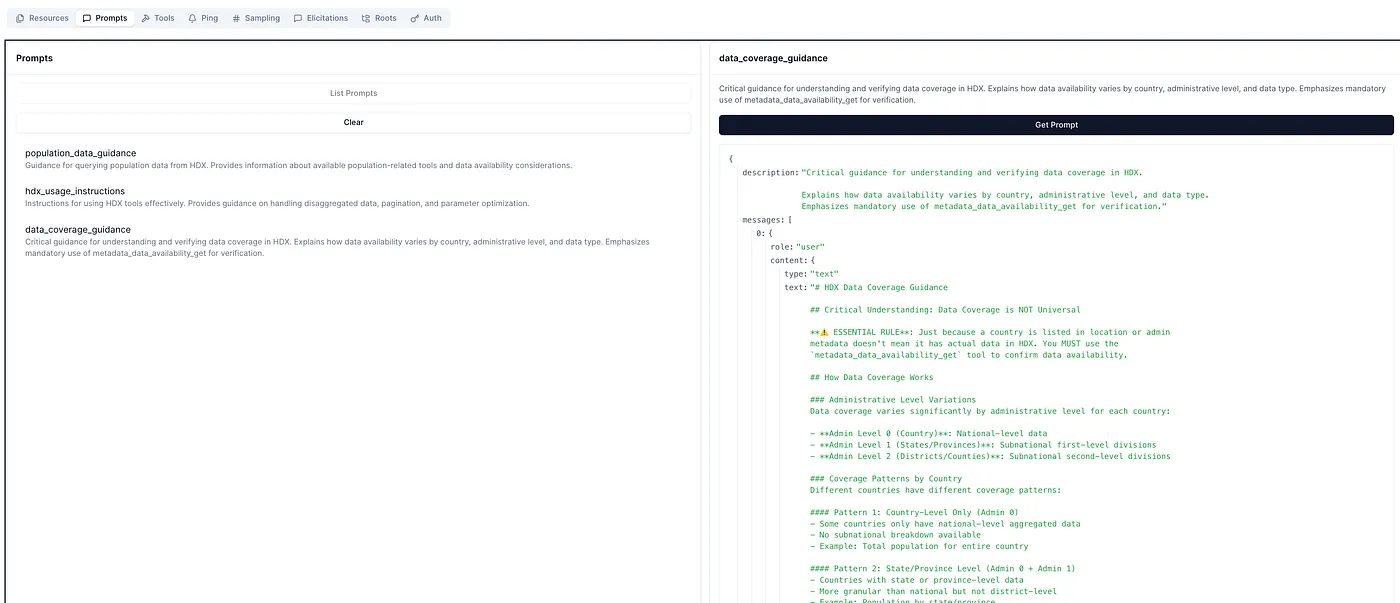
The server also provides prompts, clicking on ‘Prompts’ at the top of Inspector, on a prompt, and then ‘Get Prompt’ …
Using Our HDX MCP Server in Claude Desktop
To test our new MCP server in an AI application, we can use Claude Desktop, which has support for both local and remote MCP servers. Let’s use the Docker environment of the new HDX MCP server to add it to Claude by following Installing a Filesystem MCP Server. As we shall see below, there are easier ways using the Docker MCP Toolkit, but for now, we’ll do it the old way …
- Clone the HDX MCP server and make note of its full path: git clone https://github.com/dividor/hdx-mcp
- Copy ‘.env.example’ to ‘.env’
- In ‘.env’ set variable ‘HDX_APP_IDENTIFIER’, which you can get for free (see above section on getting an ‘App identifier’)
- Follow Installing a Filesystem MCP Server and open ‘claude_desktop_config.json’
- Add this record to ‘mcpServers’ …
"hdx-humanitarian-data":{
  "command":"docker",
  "args":["run","--rm","-i","--env-file","<PATH TO YOUR HDX MCP REPO>/hdx-mcp/.env","hdx-mcp-server"]
}
4. Restart Claude
The instruction above tells Claude to start our MCP server using Docker, which Claude will then call.
5. Click the settings slider in Claude Desktop, you should now see ‘hdx-humanitarian-data’ …
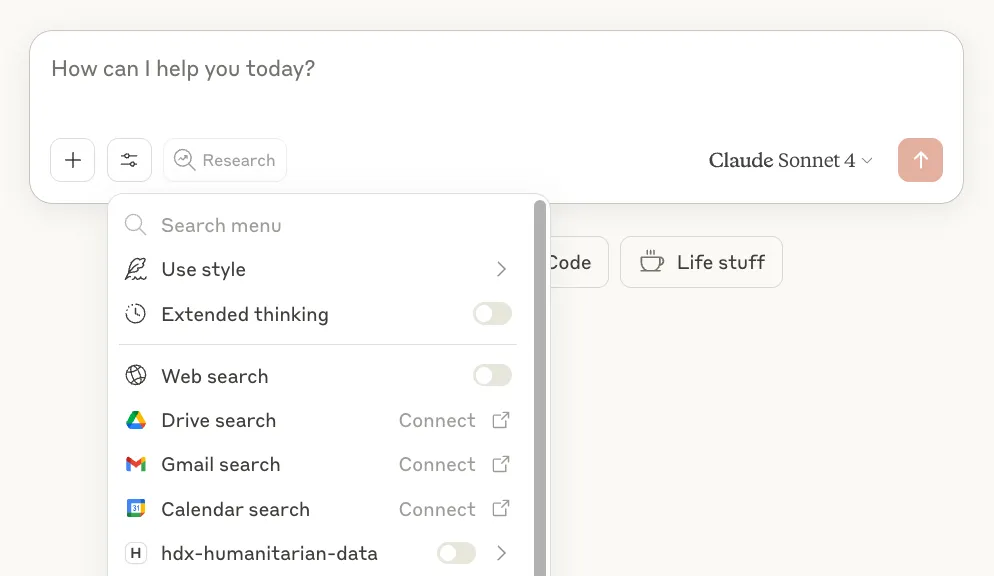
6. Toggle it on, you should now see all the tools …
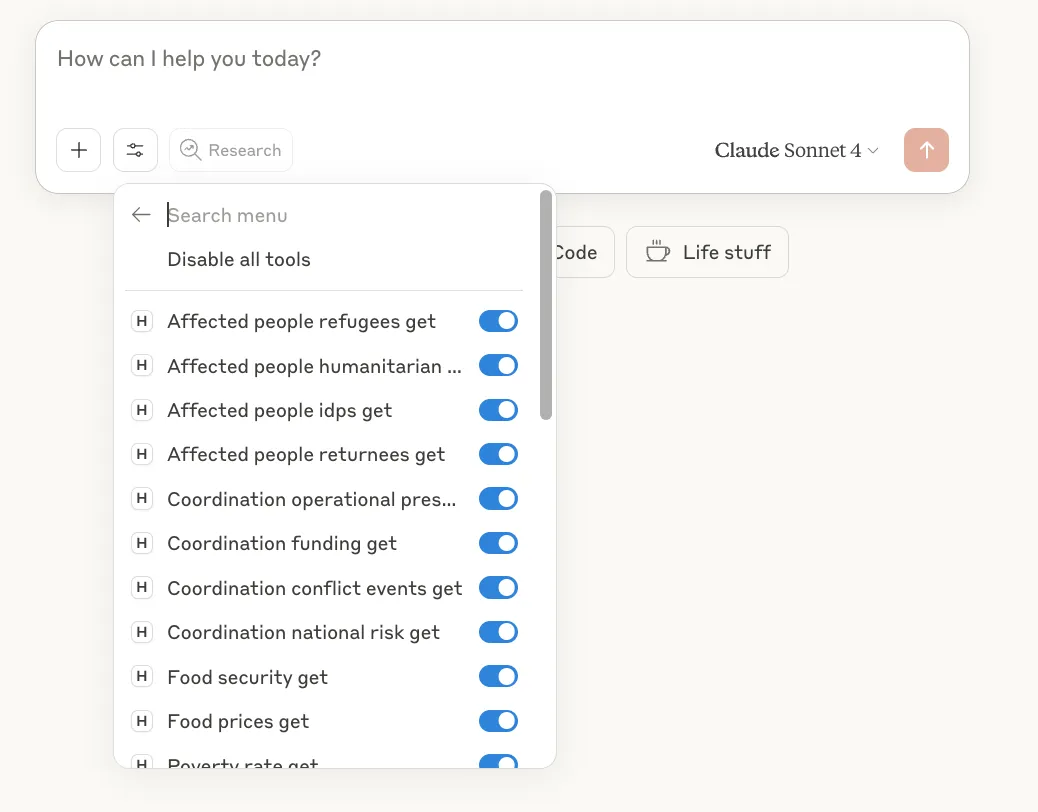
OK, we’re all set. Let’s now take it for a spin!
Using the MCP Server to Ask Analytical Questions
So we can verify the answers we get from Claude using our new HDX MCP server, let’s compare against the super cool dashboards the HDX team has created. Considering stats on Mali …
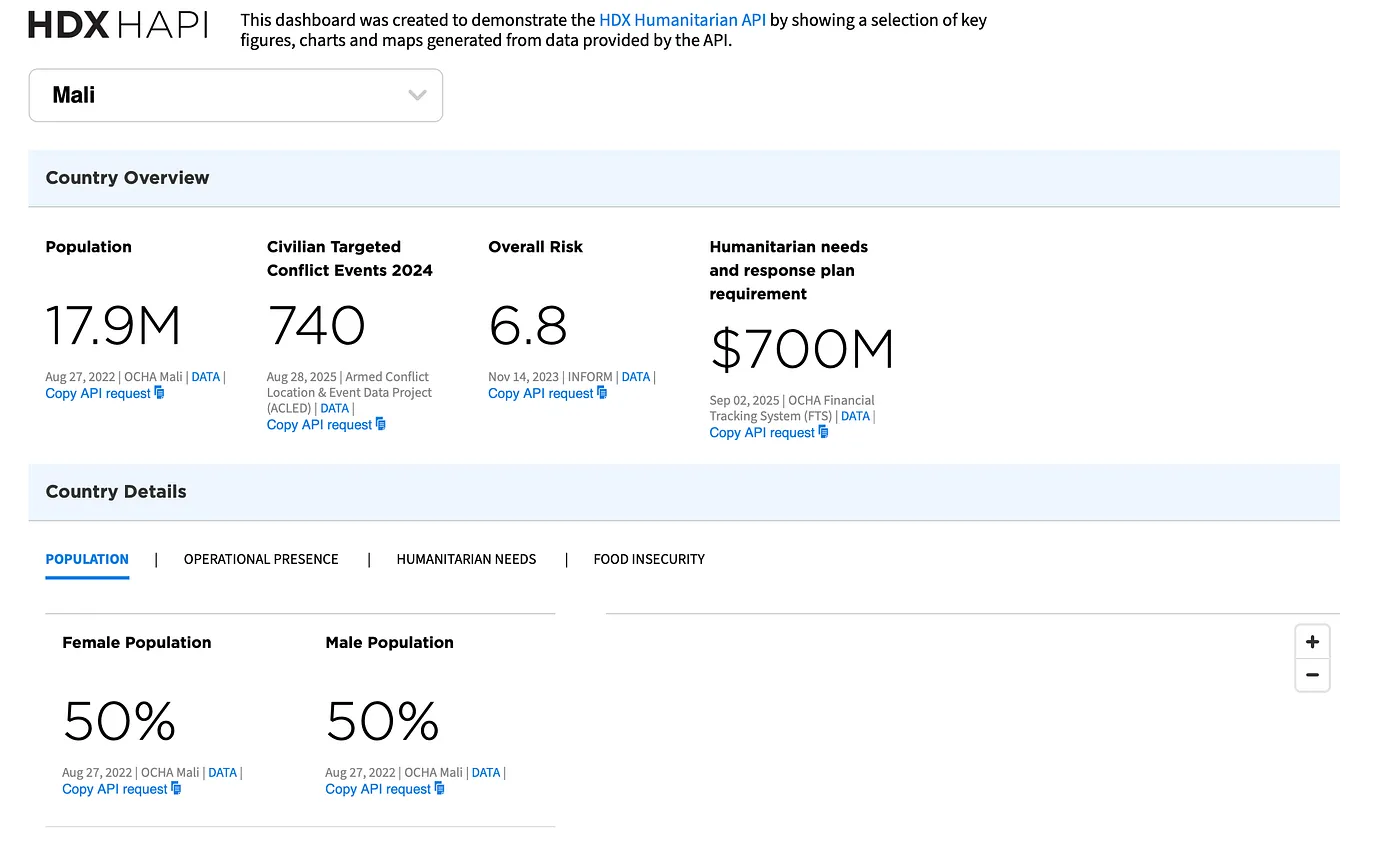
Let’s ask Claude for the same …
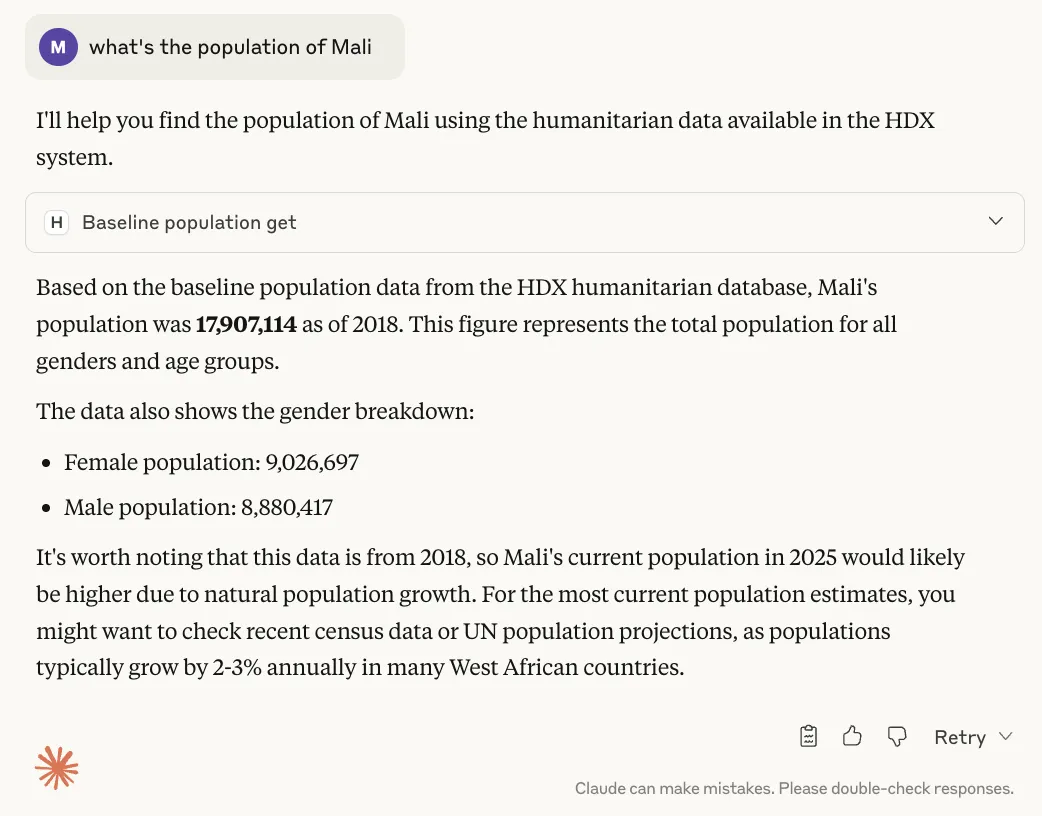
Which is correct, as provided by the API. Claude also notes that this data is a bit old, which is good.
Let’s ask about Mali’s risk metrics …
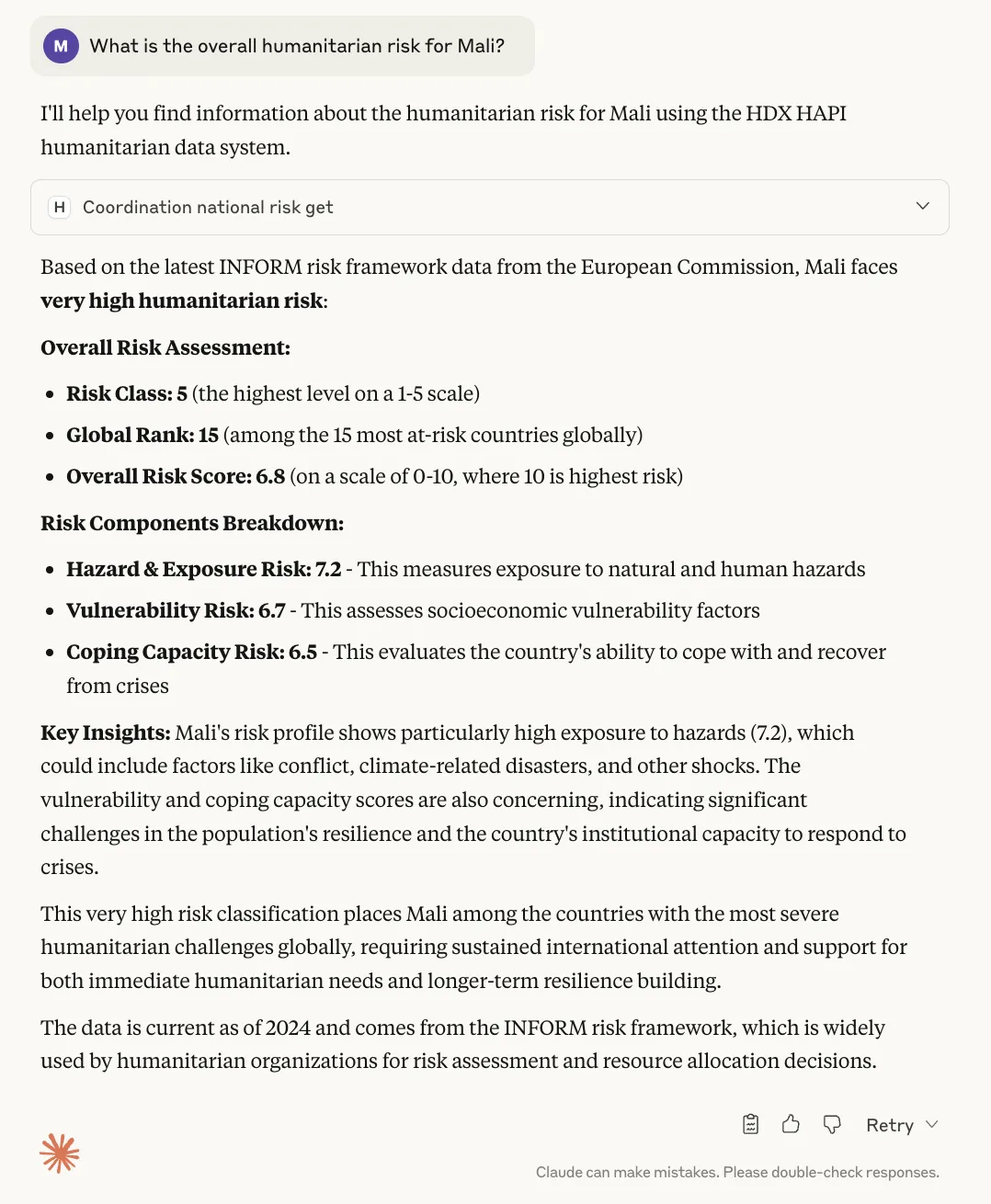
6.8 agrees with the overall risk in the dashboard, and interestingly, Claude also provides a breakdown based on the MCP server’s response …
{
  "data":[
    {
      "risk_class":"5",
      "global_rank":15,
      "overall_risk":6.8,
      "hazard_exposure_risk":7.2,
      "vulnerability_risk":6.7,
      "coping_capacity_risk":6.5,
      "meta_missing_indicators_pct":0.0,
      "meta_avg_recentness_years":0.16,
      "reference_period_start":"2024-01-01T00:00:00",
      "reference_period_end":"2024-12-31T23:59:59.999999",
      "resource_hdx_id":"603e40eb-a620-47e2-b8ac-e51961c7d661",
      "location_code":"MLI","location_name":"Mali"
    }
  ]
}
Using the MCP Server to Find Data on HDX
As well as answering analytical questions, another potentially useful feature of the HDX MCP server is being able to ask about data uploaded to HDX so we can do our own analysis …
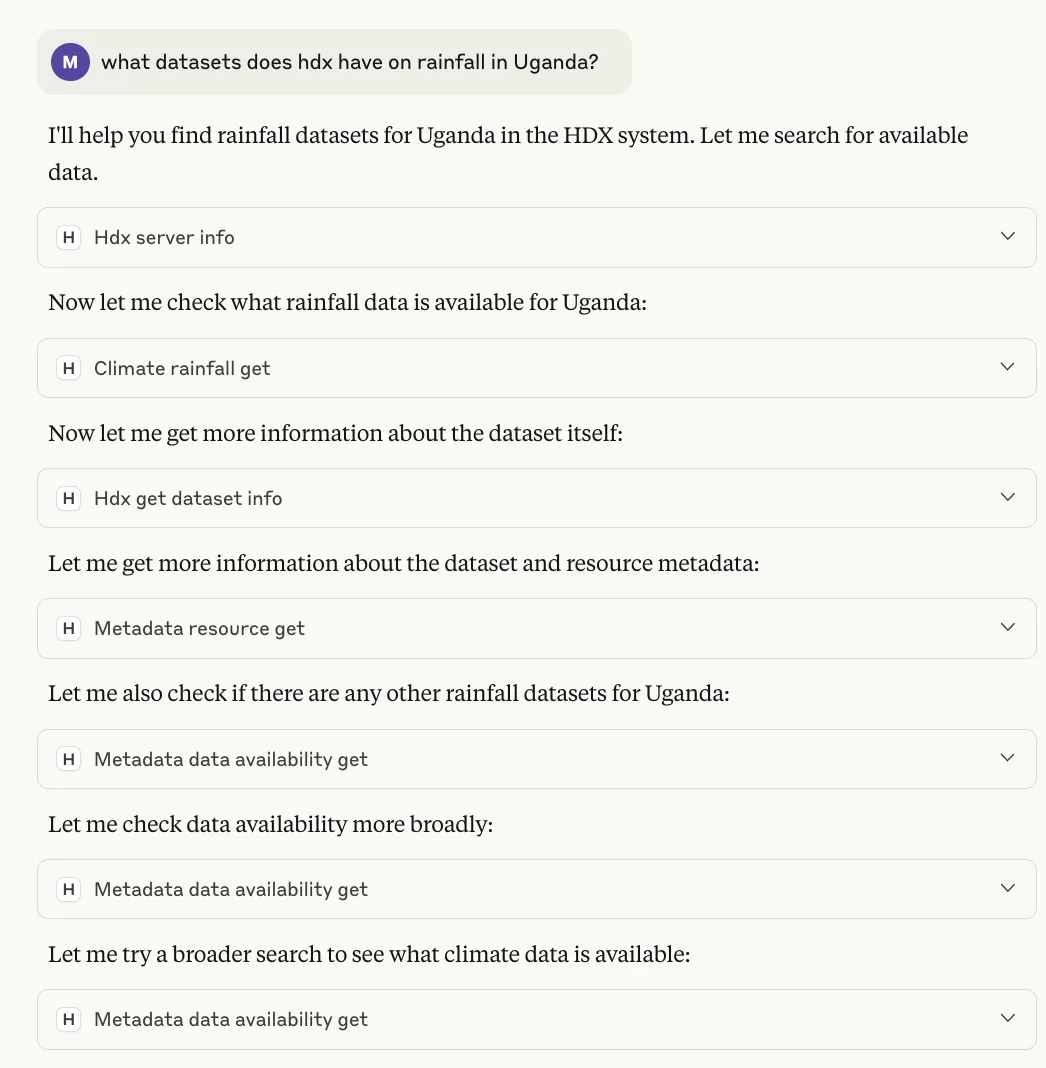
We see that Claude queries a variety of MCP tools to hone in on rainfall datasets for Uganda …
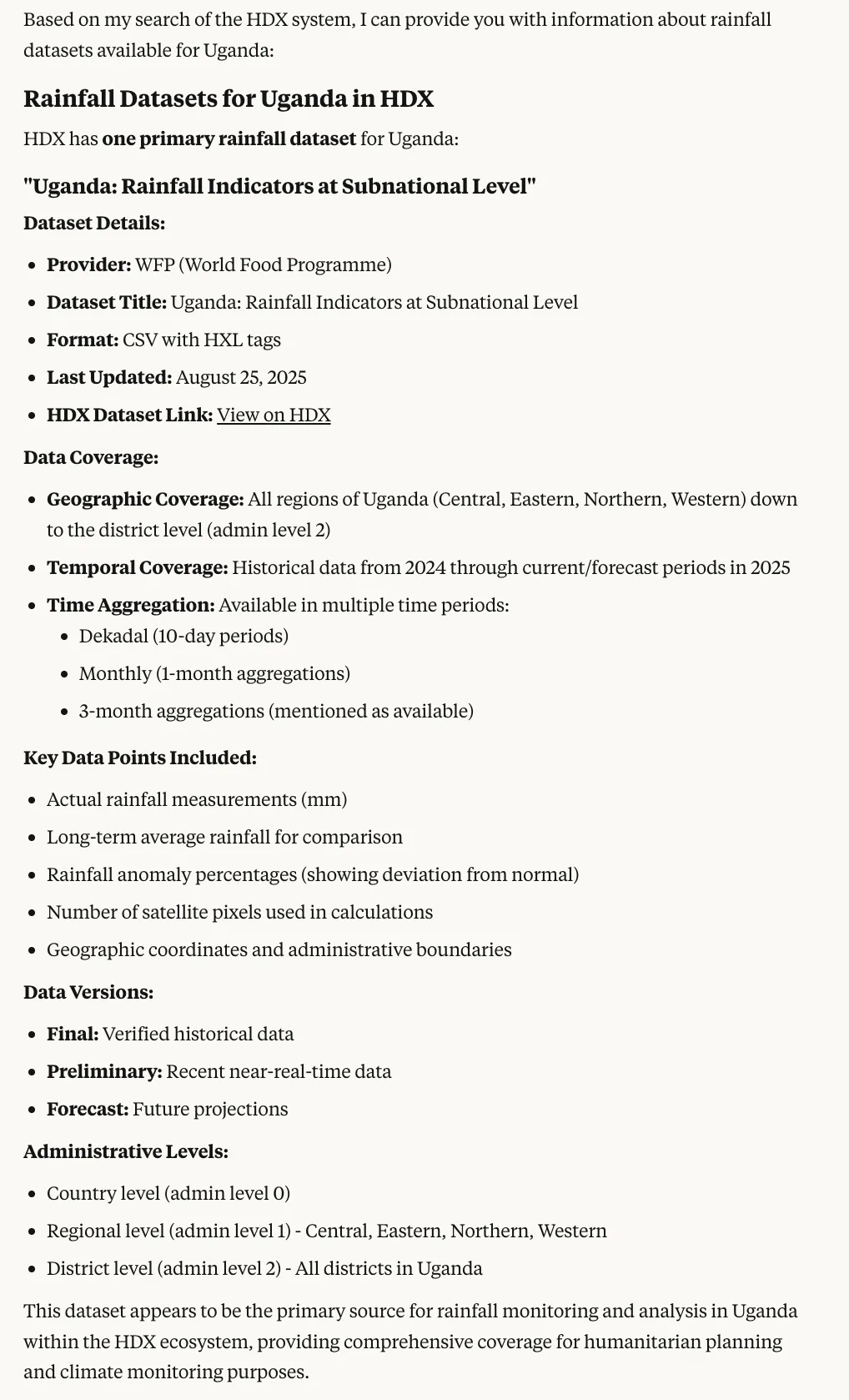
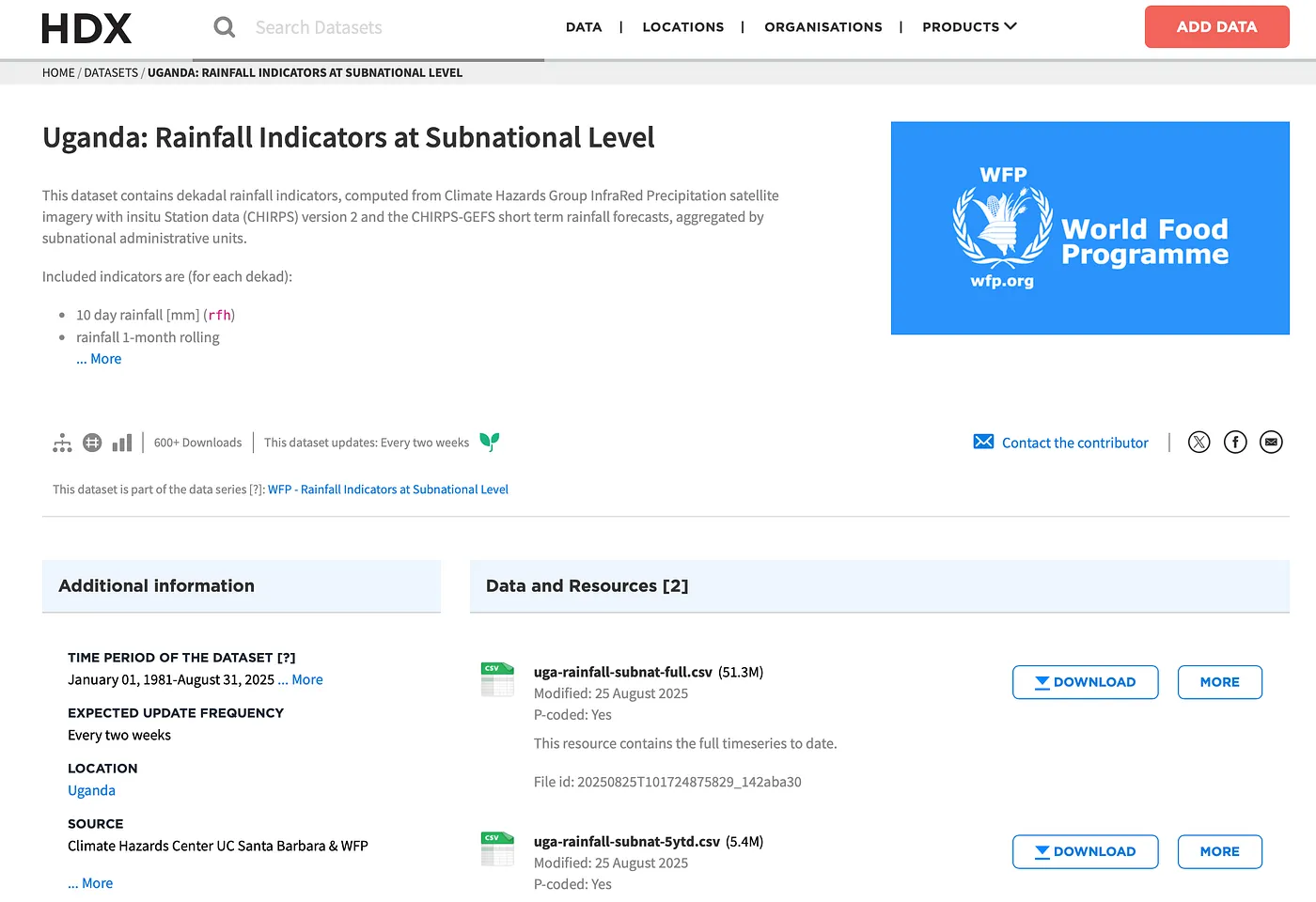
The above also includes a link to the source data on HDX …
Some Caveats
As with all things related to LLMs, there are some caveats and issues to consider.
Varying levels of data aggregation by region
The HDX API is quite complex, with disaggregation varying by country (see data availability table here). This isn’t a technical issue; it is an outcome of the challenging environment in some countries for gathering data. For example, we see that Mali only has conflict data at Administrative Level 2 (regional subdivisions called cercles) …
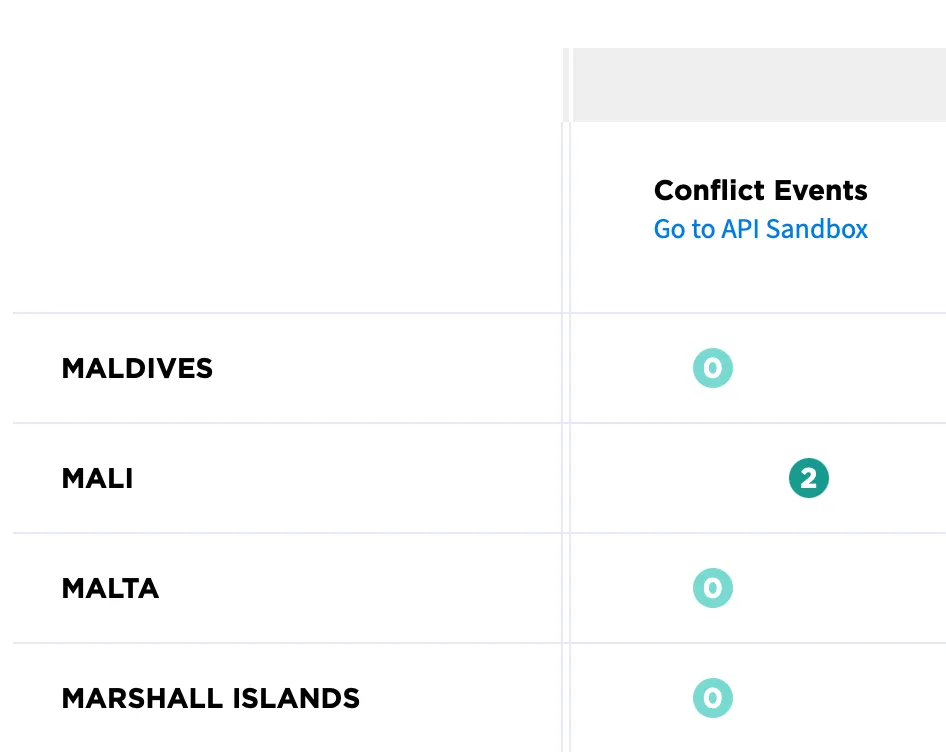
This means that any questions about the national totals of conflict events for Mali would require adding up regional totals.
NEVER LET AN LLM DO THE ARITHMETIC USING LARGE VOLUMES OF API RESULTS PASSED IN VIA THE PROMPT
This is a recipe for disaster. Not only are the volumes of data prohibitive, LLMs will hallucinate in this scenario.
Also, in this example, the fact that the API itself doesn’t provide this data at the national level might suggest that even though there is data at sub-national levels, it could be incomplete in some way.
The HDX MCP server includes prompts and tool descriptions instructing the caller to never sum values and to only use API outputs verbatim, but ultimately, whether this is followed will depend on the calling LLM’s capability and system prompt.
In Claude, we can add “Never calculate values from your tools, only use their data verbatim” to the profile system prompt, which results in some sensible behavior …
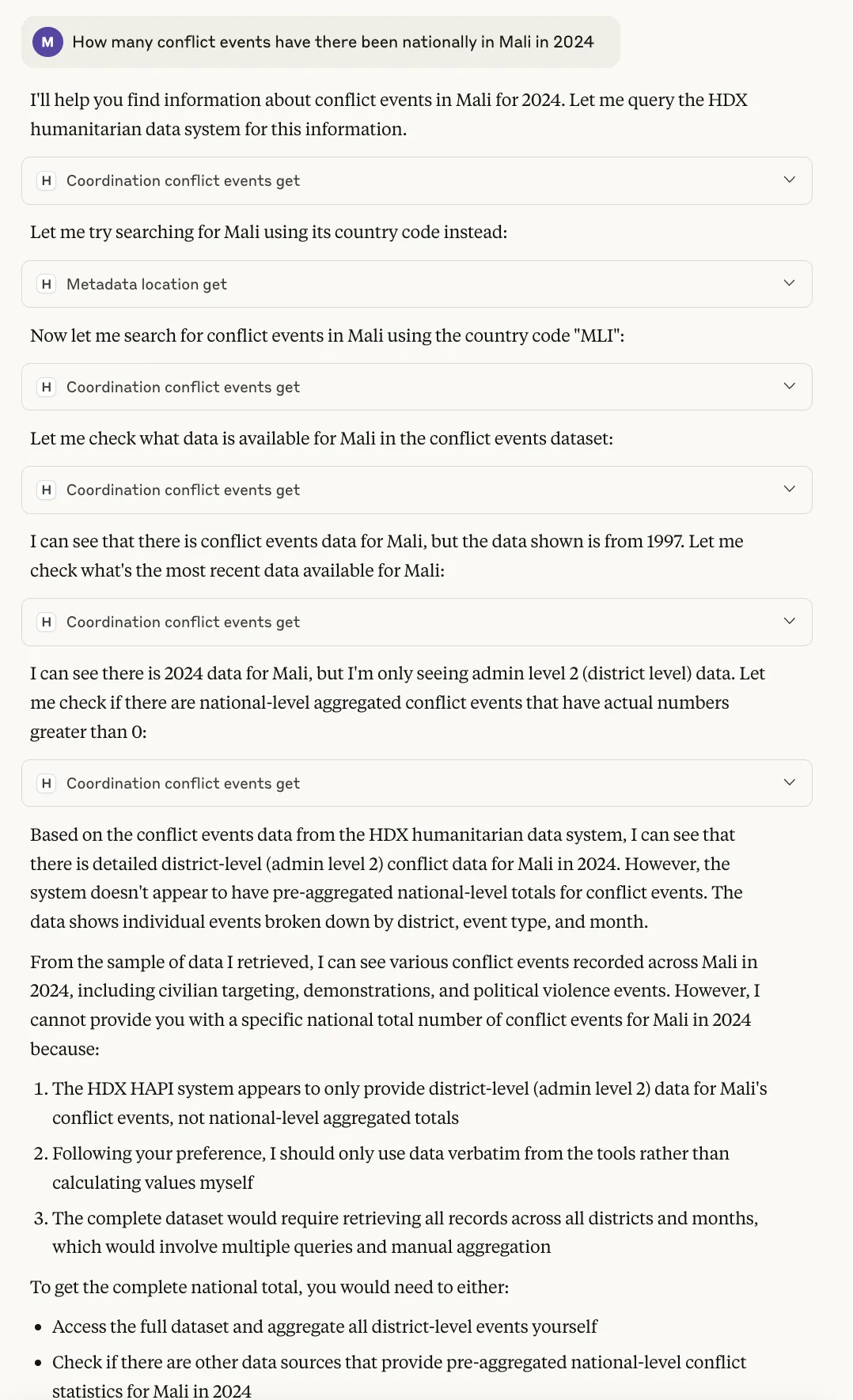
But other, less powerful platforms might try and do something silly.
As always with any LLM system, detailed evaluation, guardrails, and tuning are required.
Submitting the HDX MCP Server to Docker MCP Hub
In the last month or so, the Docker MCP Catalog and Hub (beta) have been gaining some momentum. Docker Hub is already a massively utilized resource, so it makes sense that Docker be a major platform for MCP servers. Most importantly, the Docker ecosystem can improve security and certification. It also improves adding MCP servers to clients like Claude Desktop, which can be a bit technical.
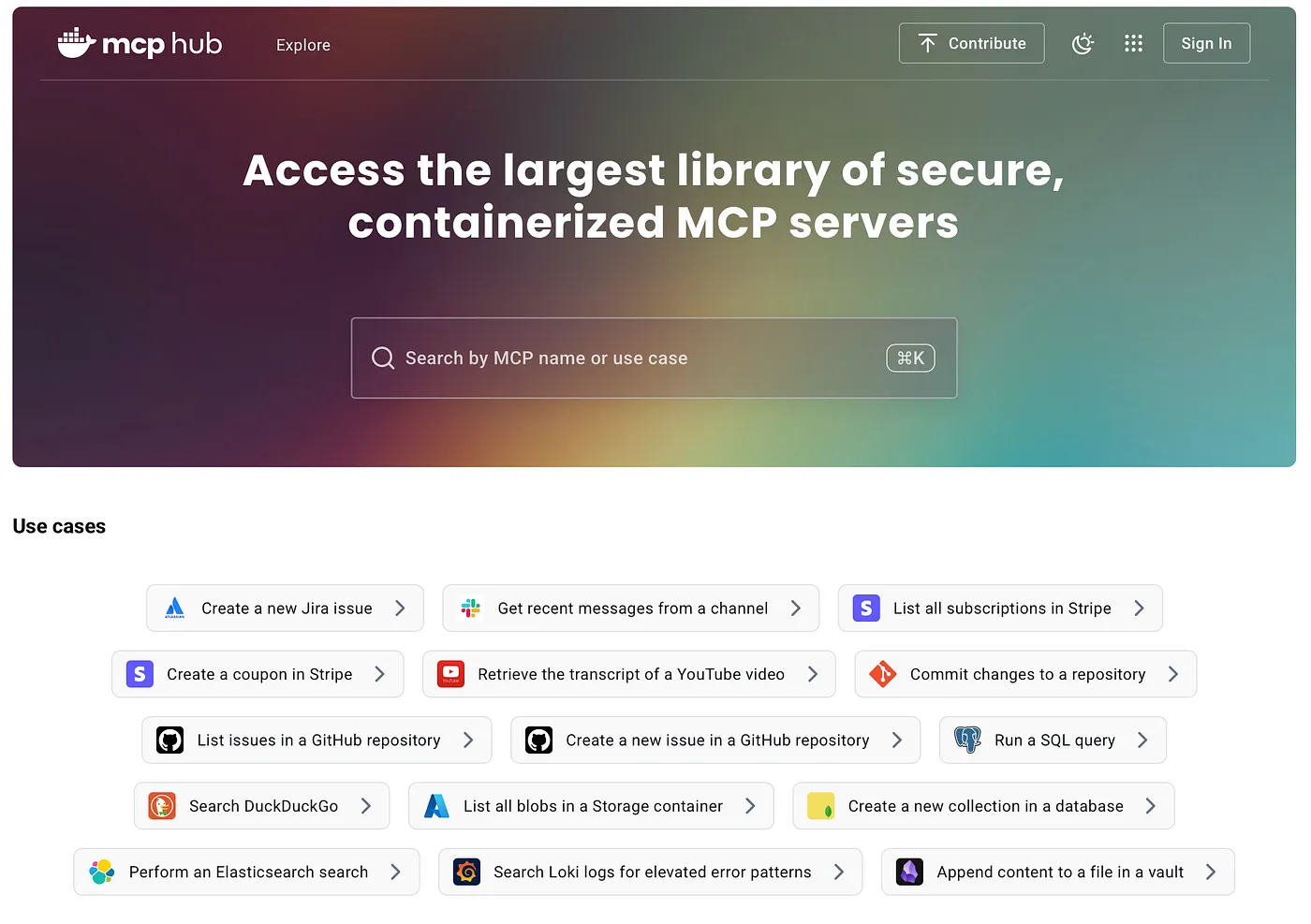
We have developed our MCP server to include a simple Docker build, meaning it can already be run in Docker. To submit it to the Docker MCP hub, we will first need it to be added to the Docker MCP Registry by following their excellent instructions here.
After forking the repo and following the wizard, we ended up with a single server configuration file. After confirming all the tests passed, we created a Pull Request (PR) in the GitHub user interface, which then went into a review. There was a minor environmental issue to resolve, but this PR was reviewed and approved after a couple of weeks.
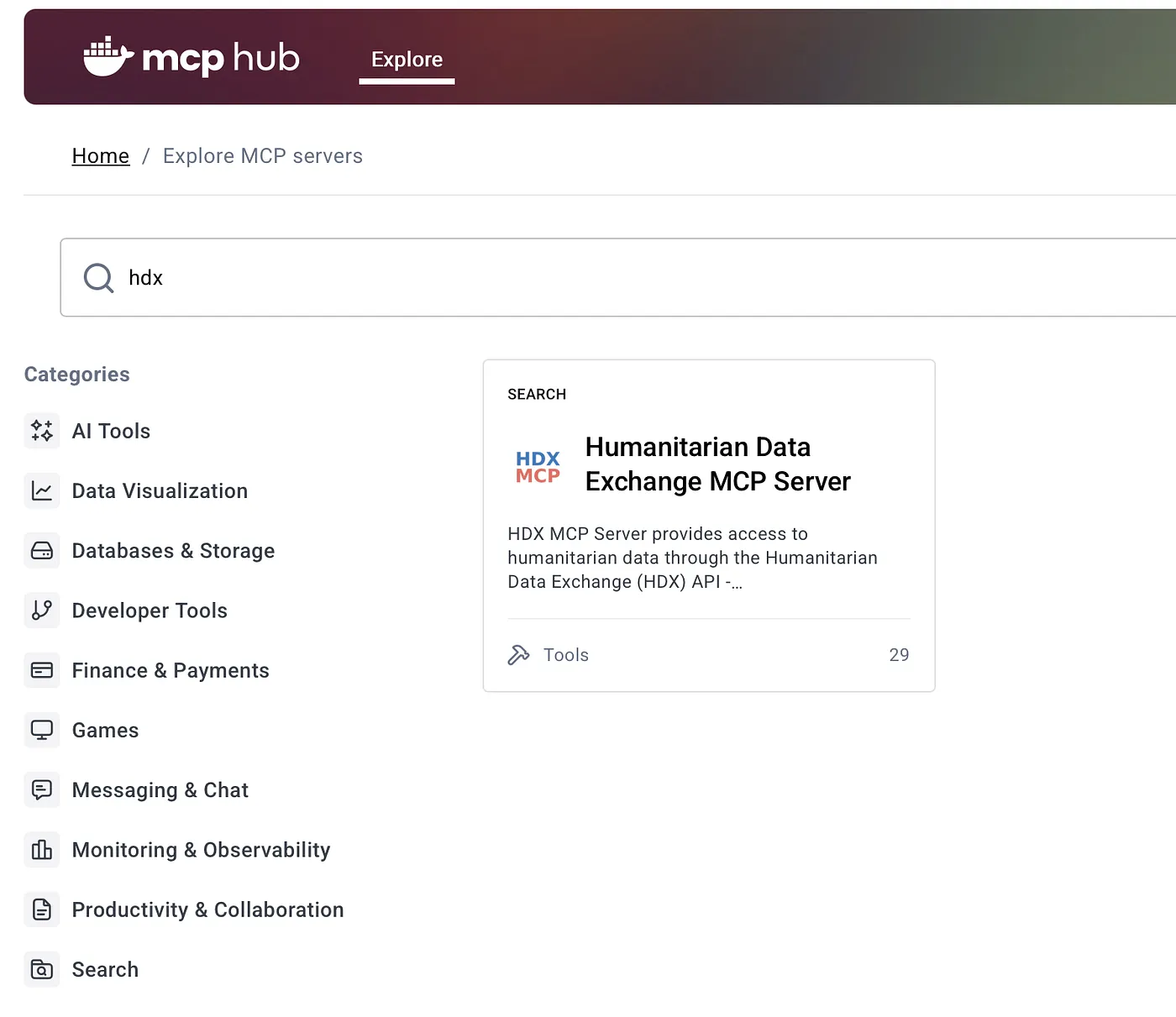
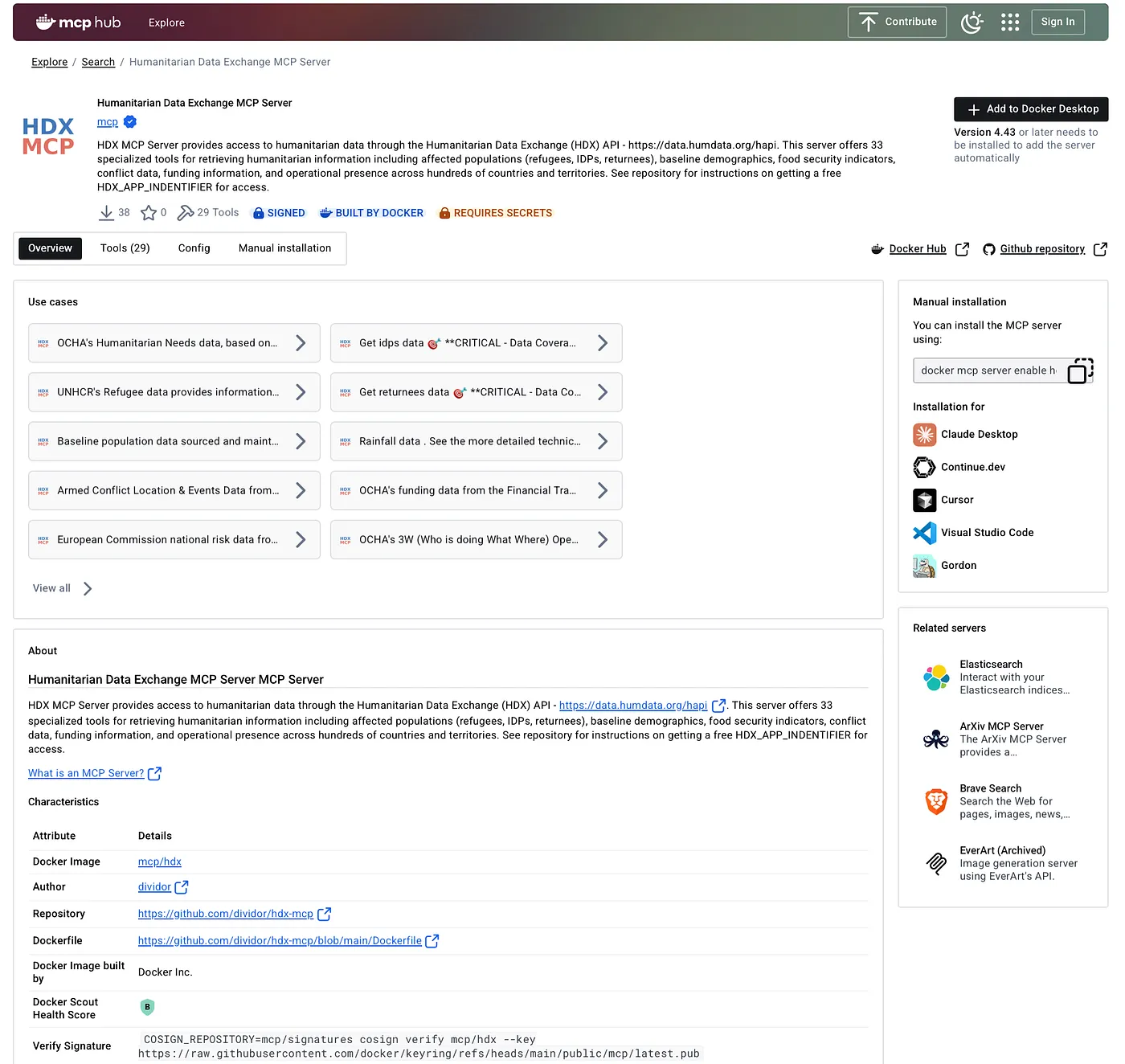
Once approved, everything else is automatic, and the new HDX server appeared on the Docker MCP Hub …
What’s super cool is that the build automatically discovers all available tools …
Installing the HDX MCP Server from Docker MCP Hub
Now that the new server is on Docker MCP Hub, anybody can deploy it into their Docker environment if they have Docker Desktop 4.43 or higher.
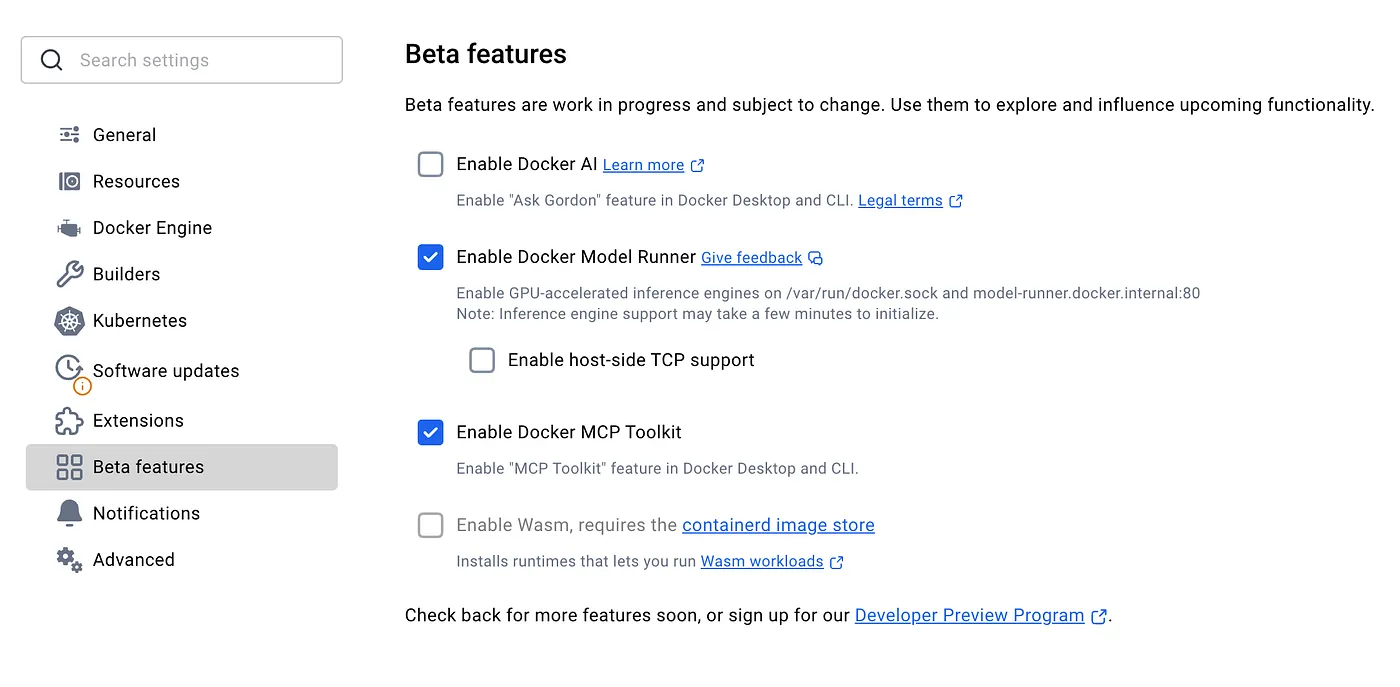
First, activate ‘Docker MCP Toolkit’ under Settings > Beta Features …
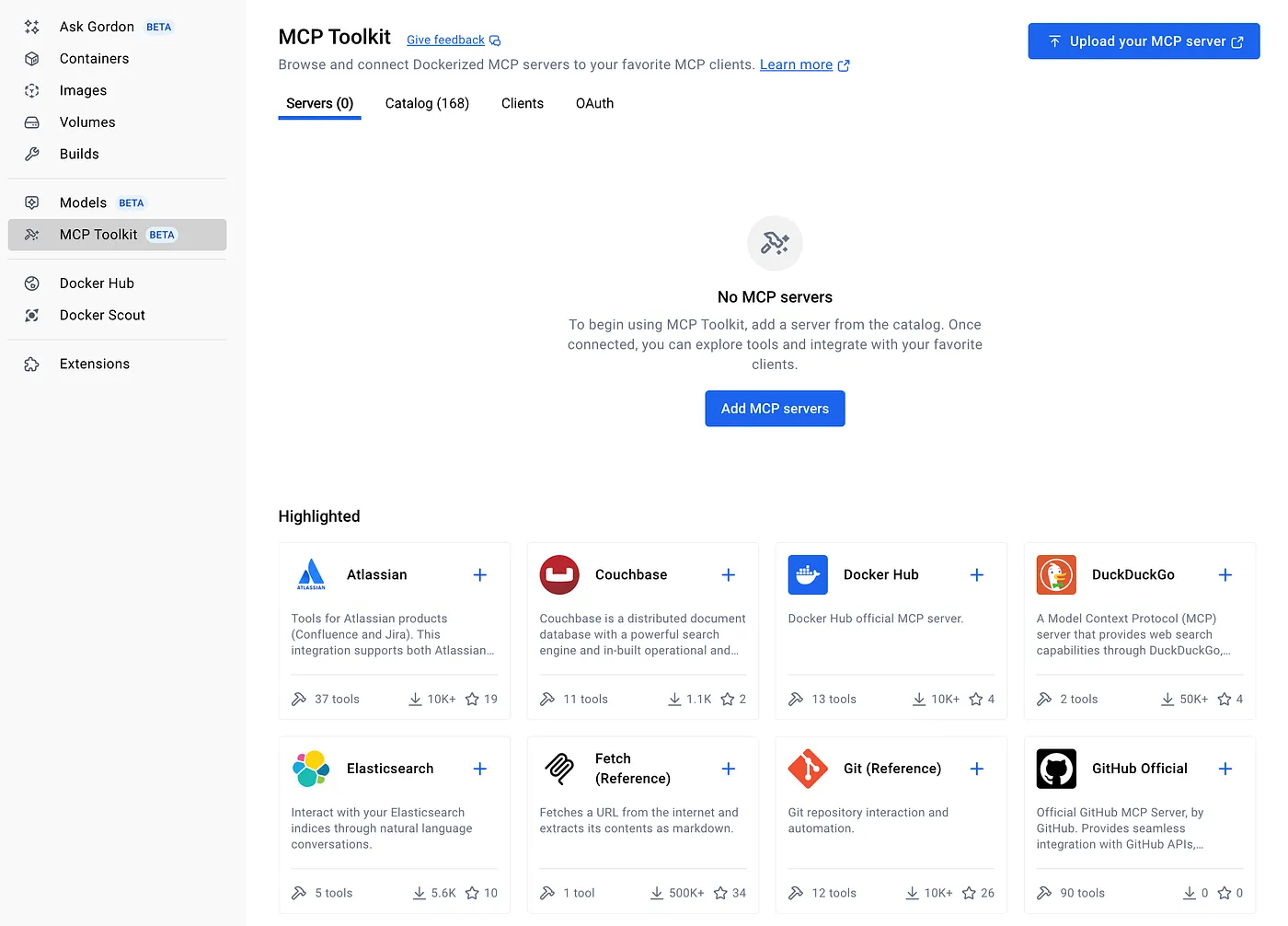
Then, in the main Docker Desktop window, an ‘MCP Toolkit’ option will appear …
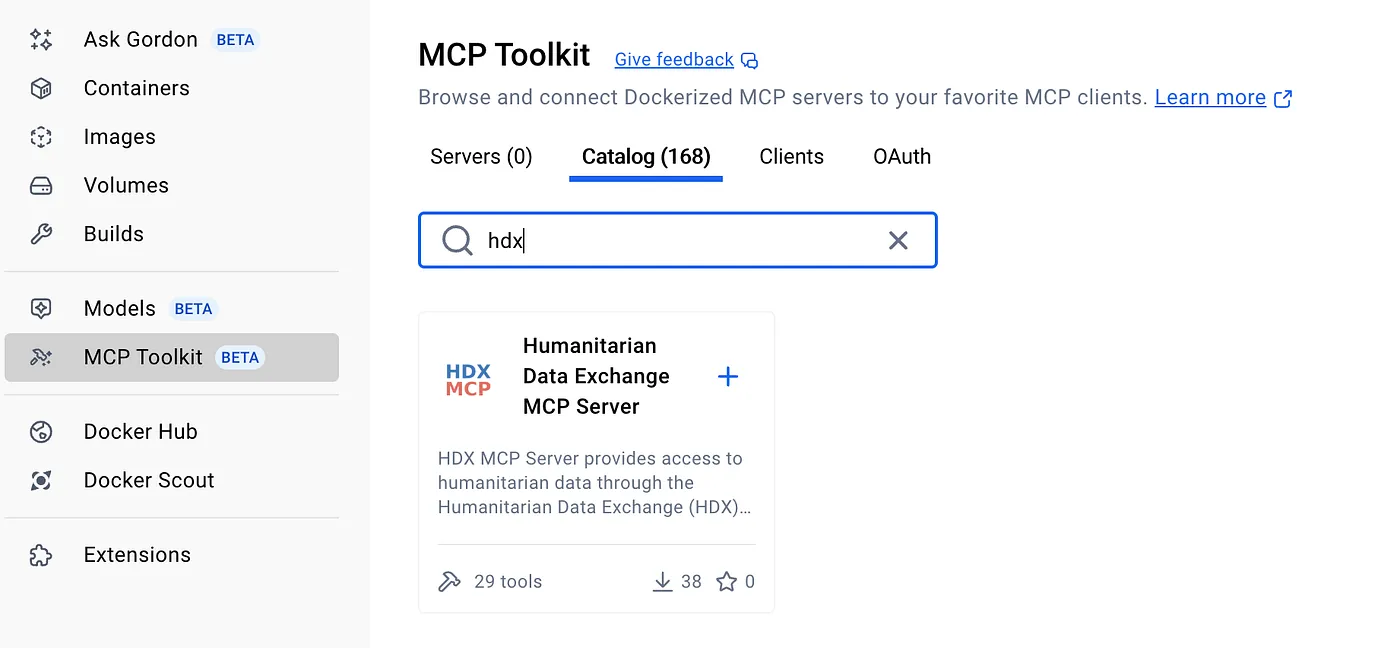
Clicking ‘Add MCP Server’ and searching for ‘HDX’ will find our new server to add …
On clicking ‘+’, we are prompted for the HDX App identifier (see top of this article for how to get this, it’s free!) …
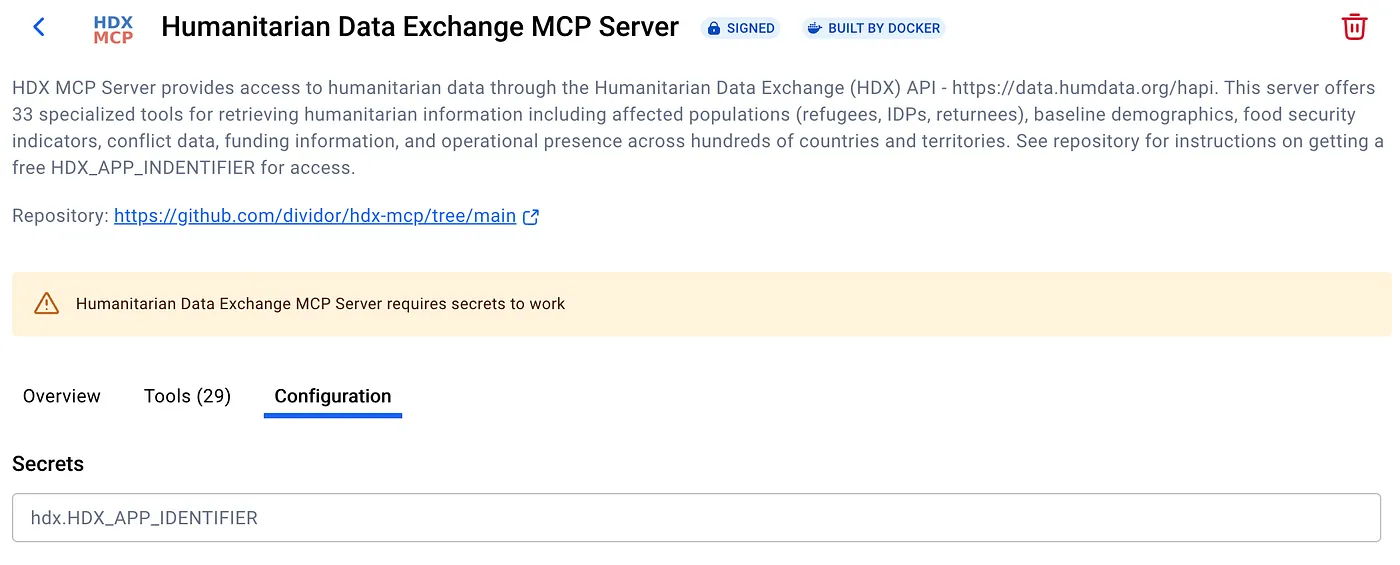
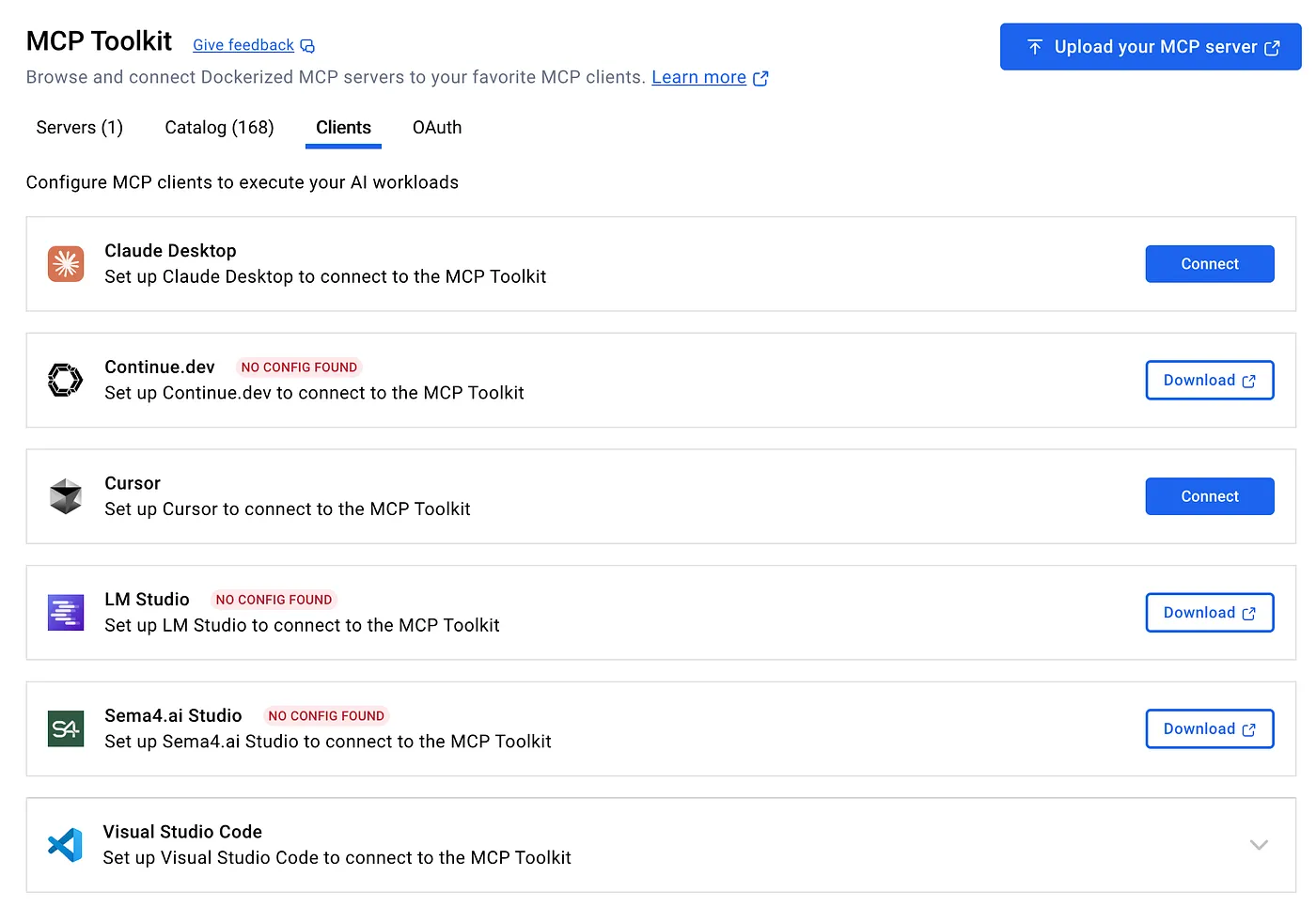
Once entered, our server is ready to go. We can now add to Claude under the ‘Clients’ section with a single click using the Connect button …
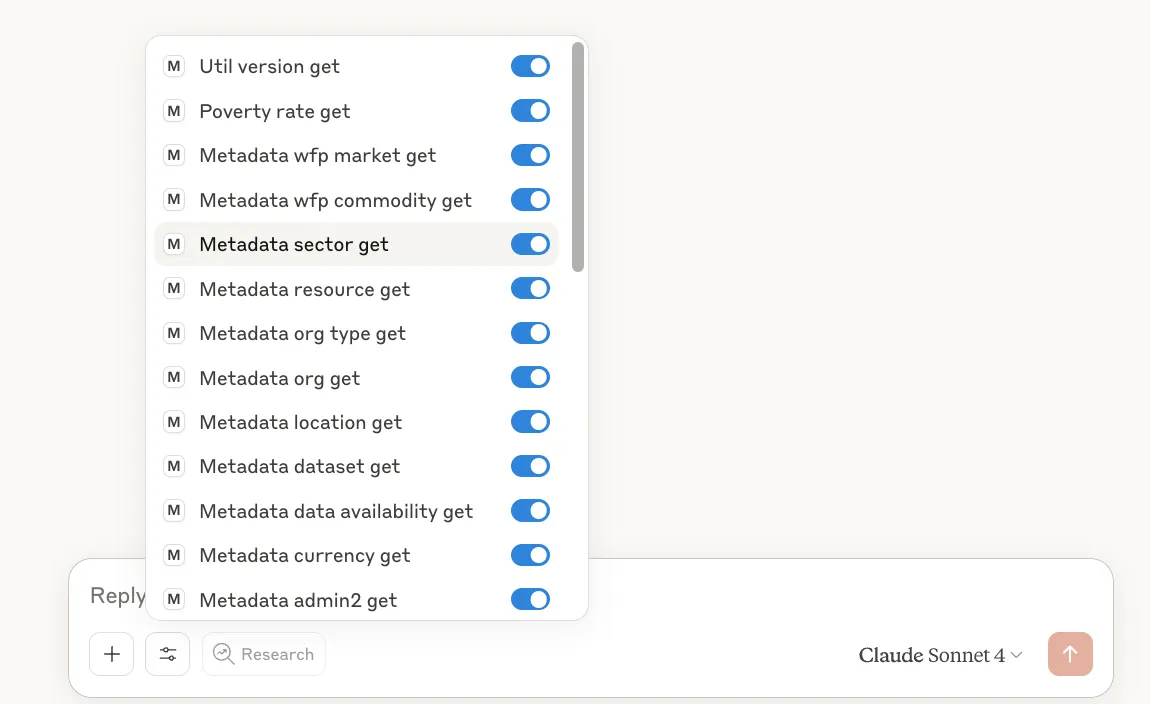
Restarting Claude, we should now see ‘MCP_DOCKER’ under tools (the little sliders in the chat window) …
That’s it, we’re ready to go!
Future Work — Better MCP messaging to inform the LLM of missing/too much data
As noted above, in some cases, the API can only provide geographically disaggregated data, making queries related to higher aggregation (eg, national) levels challenging. The MCP server already provides tool descriptions and prompts to try and prevent LLMs from carrying out risky calculations to aggregate data, but this is brittle and depends on the power of the calling LLM.
One way to tighten this process might be for the MCP server to be clearer in its response if a request is made for a geographical level where there is no data at that level for a country. For example, if a query was made for Mali conflict events at the national level and the result is zero, the MCP could automatically check coverage and pass back to the LLM that coverage doesn’t exist at that level, and that the LLM should not attempt aggregation itself.
This is, of course, not perfect. The calling LLM may still have a go at adding up disaggregated data, but it would at least remove the requirement for the calling it to call the coverage tool itself.
An even more proactive approach would be for the MCP server to simply refuse to return data if there are too many records, instructing the LLM to filter or, in the case of HDX where there is no aggregated data, inform the user.
As with any initial release, there are improvements that can follow. Hopefully, this is a nice starting point for the community to take forward.
Developing a New Model Context Protocol (MCP) Server for the Humanitarian Data Exchange (HDX) was originally published in Data Science Collective on Medium, where people are continuing the conversation by highlighting and responding to this story.